Have you seen "Connected, no internet" on an Android phone, "No Internet Connection" on an iPhone, or "No Internet, secured" on a Windows laptop? It means your device is connected to your home WiFi, but its data isn't reaching the internet.
The good news is that many causes can be fixed yourself in a few minutes. Follow the steps below in order.
First Step: One Device or All of Them?
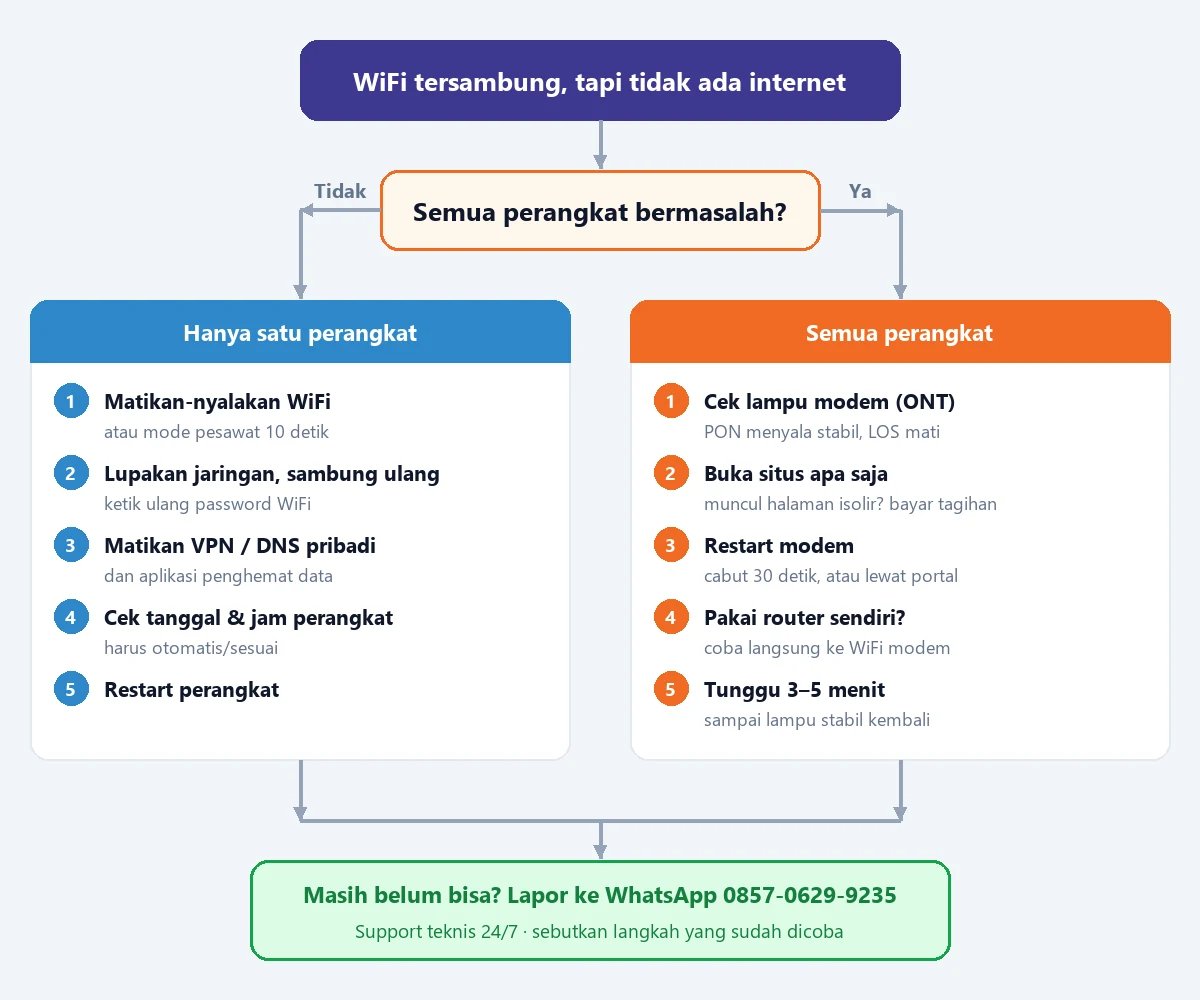
Try going online from another device connected to the same WiFi. The answer decides what to do next: if only one device has the problem, the cause is almost certainly that device. If all devices have no internet, check the modem and the service.
If Only One Device Has the Problem
- Turn WiFi off and on on the device, or switch on airplane mode for 10 seconds and then turn it off.
- Forget the network and reconnect. Open WiFi settings, select your home WiFi, tap Forget, then reconnect by typing the WiFi password again.
- Turn off VPNs, Private DNS, and data-saver or ad-blocking apps. These can hold the connection back. On Android, check the Private DNS setting and choose Automatic or Off (the menu location varies by phone brand).
- Make sure the date and time are correct, ideally set automatically. With a wrong date, many websites and apps refuse to connect for security reasons.
- Restart the device. This simple step often fixes problems with no obvious cause.
- Move closer to the modem. If the WiFi signal is very weak, try from a room closer to it. See also choosing 2.4 GHz or 5 GHz WiFi.
If No Device Can Get Online
- Check the modem (ONT) lights. Normally, the PON light is steady and the LOS light is off. If LOS is red, the fibre signal isn't reaching the modem: don't take the fibre cable apart yourself, report it right away. Each light is explained in what the fibre modem lights mean.
- Open any website in a browser. If you see the page "Layanan Internet Anda Sedang Diisolir" (your internet service is isolated), the service is paused because of an unpaid bill. Follow the guide to reactivate isolated internet.
- Restart the modem. Unplug the modem adapter, wait about 30 seconds, then plug it back in. Wait 3–5 minutes until the PON light is steady. You can also restart the modem from the Customer Portal.
- Using your own extra router? Try connecting directly to the GISNET modem's WiFi. If it works through the modem, the problem is the extra router, not the GISNET network.
Tip: Check Your Internet Status in the Customer Portal
When your home WiFi has a problem, turn off WiFi on your phone and open my.gis.net.id using mobile data. In the portal you can see your internet status, restart the modem remotely, and create a support ticket whose progress you can follow.
When Should You Report It to GISNET?
- The LOS light is red or blinking.
- The PON light is off or keeps blinking for more than a few minutes after restarting the modem.
- You have tried all the steps above and the internet still doesn't work.
Contact GISNET technical support on WhatsApp 0857-0629-9235 (24/7), or create a support ticket in the Customer Portal. To get it handled quickly, have ready:
- Your name and Customer ID.
- A photo of the front of the modem showing the lights.
- When the problem started, and which steps you have already tried.
Not a GISNET Customer Yet?
GISNET fibre internet is unlimited with no FUP, with upload as fast as download, flat pricing, and 24/7 technical support, from Rp165,000/month. See the packages or check coverage in your village.