When you open the WiFi list on your phone, you may see two network names from your own home, for example one with "5G" added at the end. These aren't two different internet connections, but two frequencies from the same modem: 2.4 GHz and 5 GHz.
It's the same internet and the same package speed. What differs is how the signal behaves. Choosing the right frequency for each device can make your home WiFi feel much smoother.
Note: "5G" in a WiFi name means 5 GHz, not the 5G mobile network.
What's the Difference Between 2.4 GHz and 5 GHz?
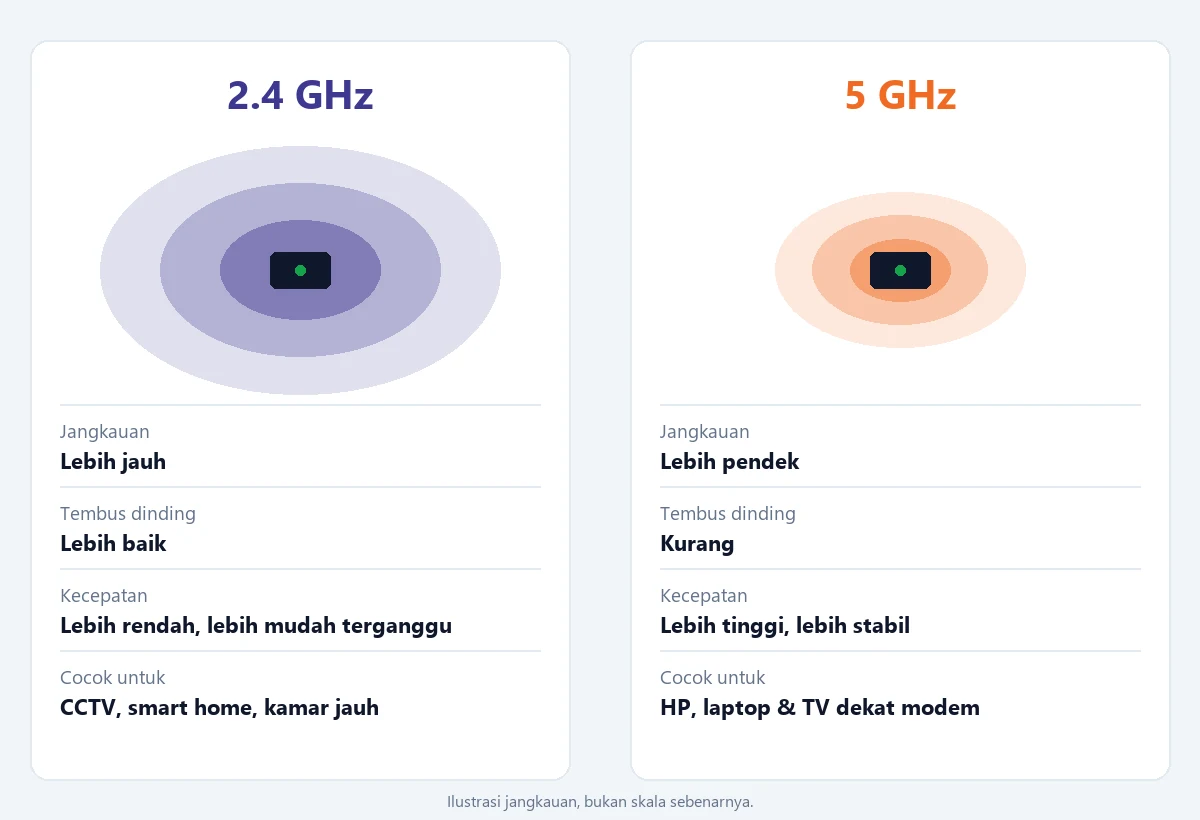
- 2.4 GHz: longer range and better at passing through walls. But many devices use this frequency, including neighbours' WiFi, so it gets "crowded" more easily and is slower.
- 5 GHz: faster and less crowded, great for streaming and video calls. The downside is shorter range, and the signal weakens quickly behind walls.
How to Tell the 2.4 GHz and 5 GHz Networks Apart
- The 5 GHz network name usually has something like 5G or 5GHz added.
- GISNET customers can see and set both in the Customer Portal, WiFi menu. If your modem supports 5 GHz, its settings are in a separate box. The steps are in how to change your WiFi name and password.
- Tip: give them easy-to-tell-apart names, for example OurHome for 2.4 GHz and OurHome-5G for 5 GHz. That way you always know which device is on which network.
Which Device Should Use Which?
- Phones and laptops: use 5 GHz in the same room as, or close to, the modem. In a distant room, 2.4 GHz is usually more stable. Save both on your phone; many phones switch to the better signal on their own.
- Smart TVs and TV boxes: use 5 GHz if they are near the modem. For high-quality streaming, a LAN cable is the most stable option.
- Computers and game consoles: use a LAN cable where possible. If it has to be WiFi, choose 5 GHz.
- CCTV, smart plugs, smart bulbs, and printers: many of these devices only support 2.4 GHz, so connect them to the 2.4 GHz network.
Connecting CCTV or Smart Home Devices
A common problem: the setup app can't find the WiFi, or setup stops halfway. Try these steps:
- Connect your phone to the 2.4 GHz network during setup. Many CCTV and smart home apps require the phone to be on the same network as the device being set up.
- Bring the device close to the modem for the first setup. Once connected, it can be moved to its final location.
- Type the WiFi password carefully, including upper and lower case.
- If the 2.4 GHz and 5 GHz networks share the same name and setup keeps failing, give them different names in the Customer Portal and try again.
Setting up CCTV you can watch from outside the home? Pay attention to upload speed too. Read internet for online CCTV.
5 GHz Network Not Showing on a Device?
Some devices, especially older ones, don't support 5 GHz. If the 5 GHz network doesn't appear in that device's WiFi list, connect it to the 2.4 GHz network or use a LAN cable.
Summary
- Close to the modem and need speed: 5 GHz.
- Far from the modem, behind walls, or smart devices: 2.4 GHz.
- Need the most stability (TV, PC, console): LAN cable.
Still having trouble? See tips for faster home WiFi, WiFi connected but no internet, or contact GISNET technical support on WhatsApp 0857-0629-9235 (24/7).
Not subscribed yet? All GISNET packages are unlimited with no FUP, with upload as fast as download, from Rp165,000/month. See the packages.