
The fiber modem in your home has a row of small lights on the front. These lights are the modem's "language" for telling you its status: whether the fiber signal is coming in, whether the internet is connected, and which devices are currently connected.
By understanding what the lights mean, you'll know when it's enough to restart the modem yourself, and when you should report it right away to the GISNET support team.
The Fiber Modem Is Called an ONT
The device that GISNET technicians install in your home is called an ONT (Optical Network Terminal). Its job is to convert light signals from the fiber cable into an internet connection for WiFi and LAN cables. GISNET installs ONTs such as ZTE (for example, the F670L model), and the device is provided on loan for as long as you subscribe.
The names, colors, and order of the lights may differ slightly depending on the brand and model of the modem. However, their functions are generally the same as explained below.
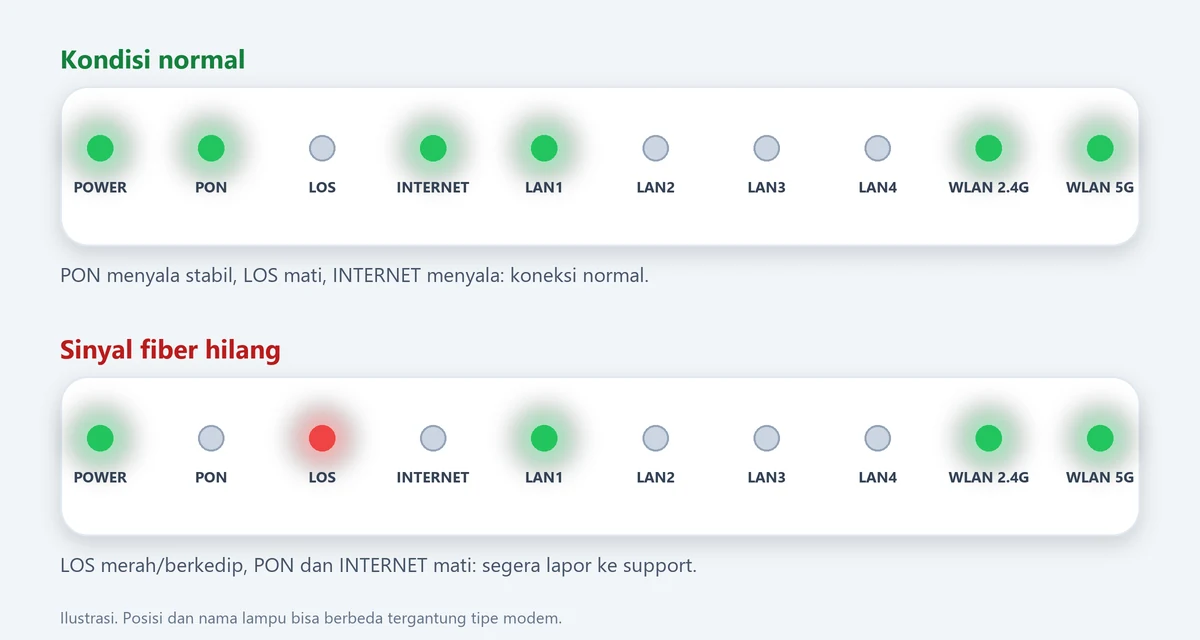
What Each Light Means
POWER
Shows that the modem is receiving power. Under normal conditions, this light is on. If it is off, check the adapter, plug, and power outlet, and make sure the power button on the back of the modem is switched on.
PON
The most important light for a fiber connection.
- Steady on: the modem is connected to the GISNET fiber network.
- Blinking: the modem is trying to connect or register with the network. This is normal for a short while after the modem is switched on.
- Off: the modem is not yet connected to the fiber network.
LOS
LOS stands for Loss of Signal. Under normal conditions, this light is off. If LOS is red or blinking, it means the fiber signal is not reaching the modem. This is usually caused by a broken or bent fiber cable, or a loose connector.
If LOS is lit, do not take apart or unplug the fiber cable yourself. Fiber cables contain very fine glass strands that are easily damaged. Report it to the support team right away so a technician can check it.
INTERNET
On means the internet connection (PPPoE) is active. If the INTERNET light is off while PON is normal, the fiber network is connected but the internet connection is not yet running. Try restarting the modem first, then check whether there are any unpaid bills.
LAN 1 to LAN 4
Lit when a device is connected by LAN cable to that port, such as a PC, TV, or additional router. A blinking light means data is flowing. If you don't use a LAN cable, these lights are off, and that is normal.
WLAN / WiFi 2.4G and 5G
Shows that WiFi is active on each frequency. Blinks when data is being sent over WiFi. If the WLAN light is off, WiFi may be disabled.
WPS
Used to connect devices to WiFi by pressing the WPS button. This light is usually off and only lights up briefly when the WPS feature is used.
Quick Table: Light Status and What to Do
| Light status | What it means | What to do |
|---|---|---|
| POWER off | The modem is not receiving power | Check the adapter, plug, outlet, and power button |
| PON blinking for a few minutes after switching on | The modem is trying to connect | Wait 2–3 minutes. If it keeps blinking, restart. Still the same? Report it |
| PON off or LOS red/blinking | No fiber signal coming in | Do not take apart the fiber cable. Report to support right away |
| PON steady, INTERNET off | Fiber connected, internet connection not yet active | Restart the modem, then check your bill or isolation status |
| All lights normal, but internet is slow or keeps dropping | Usually a WiFi or device issue | Restart the modem, move your device closer to the modem, try 5G WiFi |
| LAN light off even though a cable is plugged in | Faulty LAN cable or port | Unplug and replug the LAN cable, try another port or cable |
If your internet stops and every website you open shows an isolation page, read our guide isolated internet and how to reactivate it.
How to Restart Your Modem Correctly
- Turn off the modem by pressing the power button, or unplug the adapter from the outlet.
- Wait about 10 seconds.
- Turn the modem back on.
- Wait 2–3 minutes until the PON and INTERNET lights are steady, then try reconnecting your devices.
Do not press the RESET button (usually a small hole on the back of the modem). This button restores the modem to factory settings, so your WiFi name and password may be lost and the internet may not connect until it is reconfigured.
Not near the modem? You can also restart it remotely through the Customer Portal, in the WiFi menu, then Reboot Router.
Take Care of the Fiber Cable at Home
Many LOS issues start with a fiber cable that was accidentally damaged inside the house. A few simple ways to prevent it:
- Do not bend the fiber cable sharply, for example by folding it or coiling it too tightly.
- Do not let it get crushed or pinched by doors, windows, cupboards, or table legs.
- Keep it out of reach of pets that like to chew cables, and away from rats.
- If you want to move the modem, contact the support team first so the fiber cable doesn't get pulled.
When to Report and What to Send
Contact the GISNET support team right away if:
- The LOS light is red or blinking.
- The PON light is off or keeps blinking after the modem is restarted.
- The INTERNET light stays off after a restart, even though there are no outstanding bills.
- The modem doesn't turn on at all even though the power and adapter have been checked.
For faster handling, send the following via WhatsApp to 0857-0629-9235:
- Your customer ID or your name and installation address.
- A clear photo of the modem lights.
- A short description: when the problem started and what you have already tried.
The GISNET network is monitored by our NOC team 24 hours a day, so your report can be matched immediately against network conditions in your area.
Lights are normal but WiFi doesn't feel fast enough? Try the tips in our articles faster home WiFi and slow internet at night.