Too many people know your WiFi password? Want a WiFi name that's easier to recognize? GISNET customers can change their WiFi name (SSID) and WiFi password themselves through the Customer Portal, anytime, from their phone, without waiting for a technician to visit.
The images in this article use a sample customer account. Your account will look similar, but the names and device details will differ.
Step 1: Log In to the Customer Portal
Open my.gis.net.id in your phone or computer browser. Enter your Customer ID and portal password, then tap Masuk (Log In).
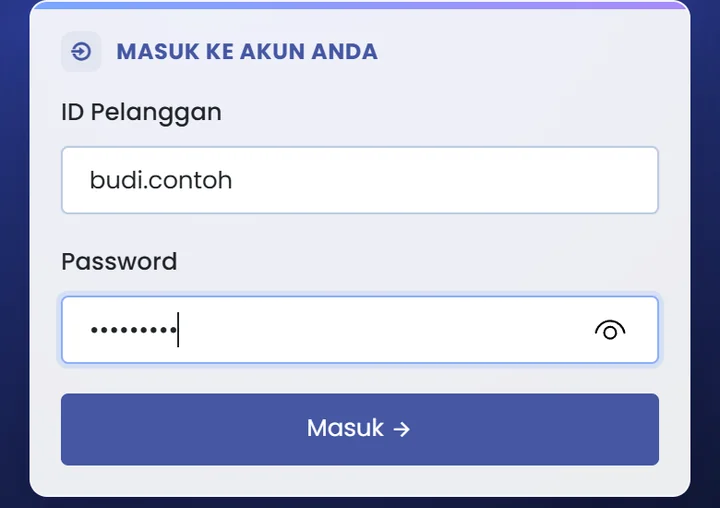
Don't know your Customer ID or portal password? Contact the GISNET support team via WhatsApp at 0857-0629-9235.
Step 2: Open the WiFi Menu
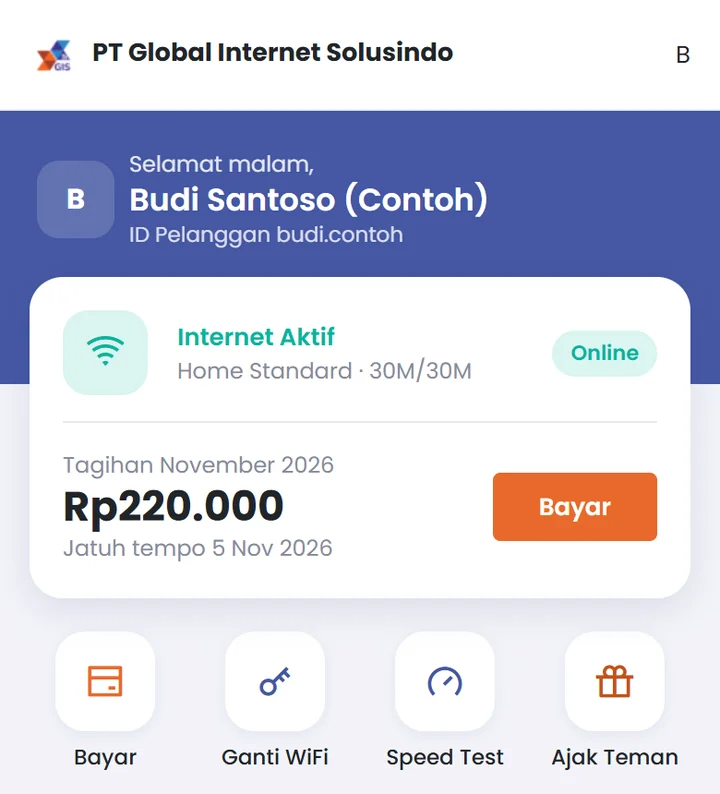
On the Home screen, tap the Ganti WiFi (Change WiFi) button, or select the WiFi menu at the bottom of the screen.

Step 3: Change the WiFi Name and Password
The WiFi page shows your router settings. Fill in the following fields:
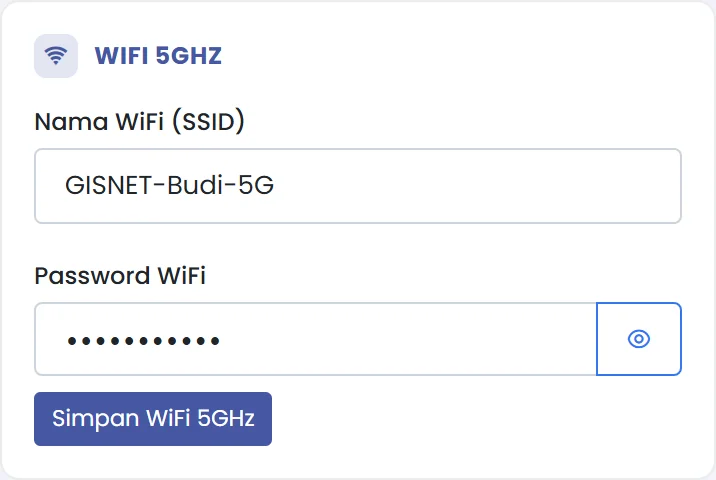
- Nama WiFi (SSID) (WiFi name): the network name that appears on phones. Use a name that's easy to recognize, and avoid including your full address or phone number.
- Password WiFi: at least 8 characters. Tap the eye icon to see the password you're typing.
Then tap Simpan WiFi 2.4GHz (Save 2.4GHz WiFi).
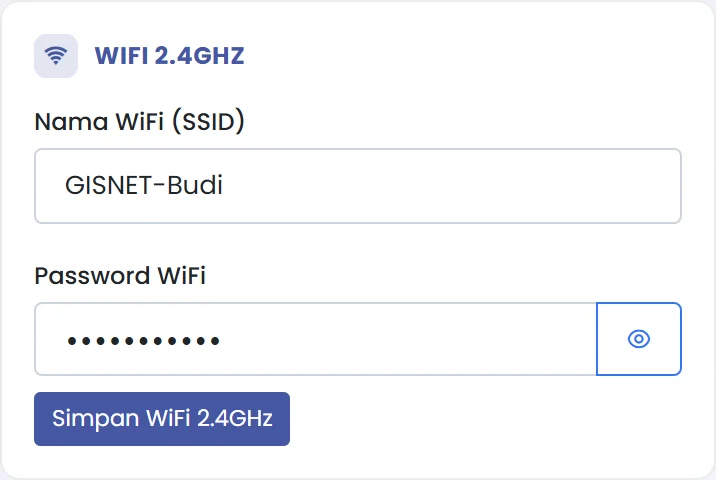
If your router supports 5 GHz WiFi, its settings are in a separate box and saved with the Simpan WiFi 5GHz (Save 5GHz WiFi) button.
2.4 GHz or 5 GHz: What's the Difference?
- 2.4 GHz has a wider range and penetrates walls better. Suitable for rooms far from the router.
- 5 GHz is faster and more stable near the router, but has a shorter range.
You can use the same name and password for both, or make them different (for example by adding "-5G" to the 5 GHz WiFi name) so they're easy to choose.
After Changing the Name or Password
- The change is sent to your router within moments. Devices connected to that WiFi will be disconnected, including the phone you're using at the time.
- Reconnect each device to the new WiFi name with the new password.
- If you have devices that stay connected all the time, such as smart TVs, CCTV, or printers, don't forget to reconnect them too. Some CCTV cameras and printers need to be reconfigured through their app or built-in menu.
Other Features in the WiFi Menu
- Perangkat Terhubung (Connected Devices): see which devices are currently using your WiFi. See a device you don't recognize? Change your WiFi password right away.
- Reboot Router: restart your router remotely when the connection doesn't feel right, even when you're not at home. The internet will be disconnected for a few minutes while the router restarts.
If the connection still has problems after a restart, contact the GISNET support team via WhatsApp at 0857-0629-9235. Our technical and NOC teams are on standby 24 hours a day, 7 days a week.
Tips for Creating a Secure WiFi Password
- Use a combination of uppercase letters, lowercase letters, numbers, and symbols, at least 8 characters. The longer, the safer.
- Avoid birth dates, phone numbers, or "12345678".
- Change your password regularly, especially after guests visit or a resident moves out.
Also read: tips to keep your home WiFi fast and how to pay your GISNET bill online.