The GISNET network is already full IPv6. But how can you make sure your device is really using IPv6? The good news is that checking is easy and you can do it yourself in a few minutes.
Here are five methods to choose from, from the most practical to the more technical.
Why Should You Check?
IPv6 on the GISNET network is enabled automatically. However, a few things on the customer side can cause a device to keep using IPv4 only, such as a personal router with IPv6 not yet enabled, or a very old device.
By checking, you'll know whether your connection is running dual-stack (IPv4 and IPv6 at the same time). This is especially useful if you plan to use IPv6 for remote access, such as CCTV or a small server.
Method 1: Look at the IP Badge on gis.net.id
This is the quickest way. Open gis.net.id from a device connected to the GISNET network, then look at the IP address badge at the top of the page.
- If your device is using IPv6, the badge shows an IPv6 label along with the address.
- If not, it shows an IPv4 address.
- On phones, the top of the site shows a single address in shortened form so it still fits on the screen.

Method 2: Use an Independent Test Website
There are several independent test websites that specifically check IPv6 readiness, one of which is test-ipv6.com. Just open the site and wait a few seconds until the test finishes.
The result is a score. A score of 10/10 means your connection can reach websites over both IPv4 and IPv6 without problems. If the score is low and it says you don't have an IPv6 address, your device is currently using IPv4 only.
Test results may differ slightly between devices or browsers, so don't worry if one test shows an odd result. Try again a little later.
Method 3: Check on a Windows Laptop or PC
Through Settings
- Open Settings, then select Network & Internet.
- Select Wi-Fi (or Ethernet if you use a cable), then open the properties of the connected network.
- Look for the IPv6 address line (shown as Alamat IPv6 if Windows is set to Indonesian).
The menu location may differ slightly between Windows 10 and Windows 11, but the names are more or less the same.
Through Command Prompt
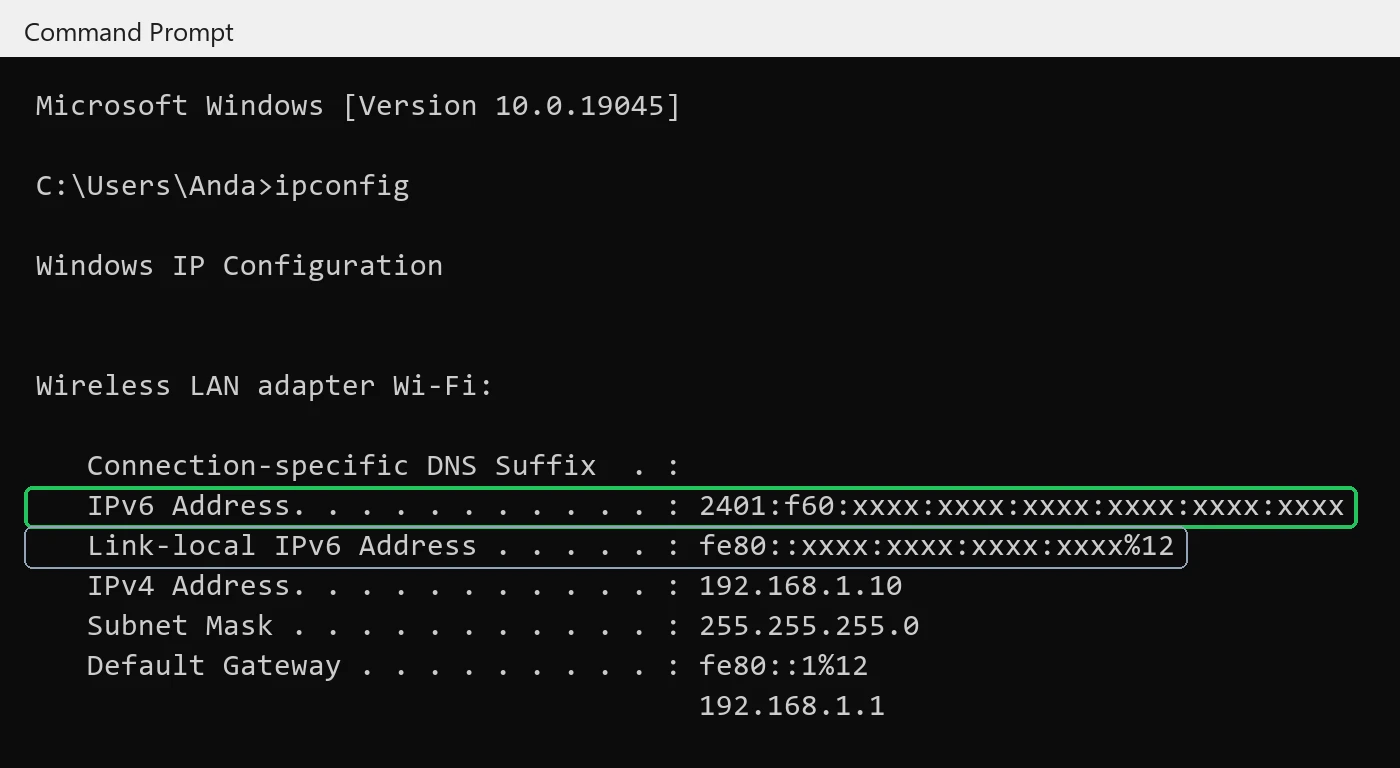
Type cmd in the Windows search box, open Command Prompt, then type ipconfig and press Enter. Look for the section of the adapter you are using (Wi-Fi or Ethernet).
There is one important thing to note here:
- An IPv6 Address or Temporary IPv6 Address starting with the number 2 (for example 2xxx:) is a global address. This is the sign that your IPv6 is active on the internet.
- A Link-local IPv6 Address starting with fe80:: only works within the local network. This address is present on almost every device, so it cannot be taken as a sign that IPv6 to the internet is working.
Method 4: Check on an Android Phone
Android menus vary depending on the brand and system version. In general, you can try one of the following paths:
- Settings > About phone > Status (sometimes called Status information), then look at the IP address section. If there is a long address with colons (:) starting with the number 2, IPv6 is active.
- Or open Settings > Wi-Fi, tap the connected network, then view its network details. On some phones, the IPv6 address is in the Advanced or Network details section.
If the menu is hard to find, Methods 1 and 2 above can still be used directly from your phone's browser.
Method 5: Check on an iPhone
- Open Settings, then select Wi-Fi.
- Tap the (i) icon next to the name of the connected network.
- Scroll down until you find the IPV6 ADDRESS section.
If this section contains an address starting with the number 2, your iPhone is already using IPv6. On older iOS versions this section may not be shown, so use Method 1 or Method 2 as an alternative.
What If IPv6 Doesn't Show Up?
Don't worry, your internet still works normally over IPv4. But if you'd like IPv6 to be active, try the following steps:
- Restart your device and router. Turn off the router for a moment, then turn it back on, and reconnect your phone or laptop.
- Check your personal router. Routers installed by the GISNET team already support IPv6. If you use your own router, make sure the IPv6 feature is enabled in its settings.
- Watch out for old devices. A small number of old devices or apps may not support IPv6 well. Try checking from another device for comparison.
- Contact the support team. If you've tried everything and IPv6 still doesn't appear, contact GISNET support via WhatsApp at 0857-0629-9235. We'll help check it from the network side.
Curious about common misconceptions about IPv6? Also read IPv6 myths and facts. To get the most out of the signal at home, see our tips for faster home Wi-Fi.
Not a GISNET Customer Yet?
All GISNET plans are full IPv6, unlimited with no FUP, with upload as fast as download, flat pricing, and equipment provided on loan. Home plans start from Rp165,000/month. See our plans, check the coverage area (Sidayu, Bungah, and Ujung Pangkah), or contact our marketing team on WhatsApp at 0857-0629-9235.